
TagMemo
Can organize all the things you need to do. TagMemo is very simple!
- Installs
- 18.06K
- Measured
- Rating
- 4.0
- Ratings
- 65
- Version
- Varies with device
- Updated 5 Oct 2019
- Released
- 5 Apr 2012
- Tracked since 13 May 2026
- Size
- 8 MB
- Needs 4.2
Screenshots

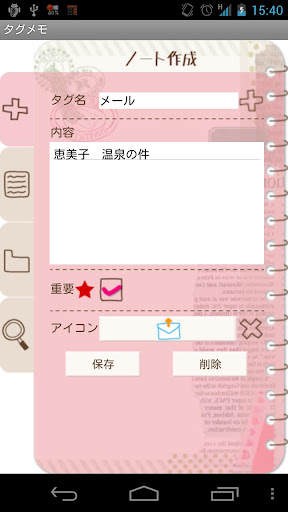


About TagMemo
The description on the store listing
With TagMemo, you can organize all the things you need to do.
TagMemo is very simple! You can organize notes by naming a tag, select several tag names in one note, and tick a checkbox when it is done so you can use it as to-do list organizer! You can share notes by sending an email and Evernote!
Main Functions: Organizing notes by naming a tag. Selecting an icon for tag folders. One note can be saved with several tag names. Organize to-do list. Sharing notes by sending email and Evernote. Changing the sorting order of the tag folders by dragging. Searching notes with multiple tag names.
**Initial Window**
1) Add Note: Create a new note.
2) Note List: Check your note list. …
Read the full description
With TagMemo, you can organize all the things you need to do. TagMemo is very simple! You can organize notes by naming a tag, select several tag names in one note, and tick a checkbox when it is done so you can use it as to-do list organizer! You can share notes by sending an email and Evernote! Main Functions: Organizing notes by naming a tag. Selecting an icon for tag folders. One note can be saved with several tag names. Organize to-do list. Sharing notes by sending email and Evernote. Changing the sorting order of the tag folders by dragging. Searching notes with multiple tag names. **Initial Window** 1) Add Note: Create a new note. 2) Note List: Check your note list. Select a note you want to edit. 3) Tag List: Check your tag folders. When you create a note with a tag name, this tag name will be the tag folder's name. You can drag a folder to change the sorting order. 4) Search: Search a note with tag name. You can search it with multiple tag names. a: Tap "Search" tag (Magnifier icon). b: Tap plus button next to the dialog box. c: You can see the list of the saved tag names. d: Select one or more, so the names will be displayed automatically in the dialogbox with comma. *Detailed description about Search function see below. **Add Note Window** 1) Tag: Enter a tag name. You can select a tag name from already saved list. Press plus button next to the dialogbox, then select a tag name from the list. 2) Content: Enter the content of the note. 3) Star icon: Tick this when the note is important to remember. 4) Icon: You can select an icon for the note. 5) Save: Save the note. 6) Del: Delete the note. **Note List Window** 1) You can see the list of the saved notes. 2) Tick the checkbox above left, then checkboxes will be displayed in front of every content. Tick it when it is done. 3) Tap a content that you want to edit. A pop-up window will be appeared then select "Edit", "Share" or "Evernote". When the note is successfully uploaded to Evernote, a green square icon with elephant will be displayed next to Evernote button. **Tag List Window** 1) When you save a note with a tag name, the note will be saved in a tag folder with the tag name you created. You can see the list of tag folders in this window. 2) The red round icon with a number shows the number of notes saved in the folder. You can change the sorting order by dragging. Drag a folder to where you want to move. 1) Tap a tag. 2) When you tap a tag folder which has notes more than one, "List" and "Edit" buttons appear. When you tap a tag folder which has 0 note, "List", "Edit" and "Delete" buttons appear. 3) List: You can see the list of the notes. Tap the content of the note to edit. 4) Edit: You can change the tag name and icon for the folder. 1) Tap a tag folder with 0 note and then tap "Delete" button. → Done. 2) How to delete a folder with notes is, tap a folder with notes → Tap "List" → Tap a content of the note → Tap "Edit" button below → Tap "Del" button below. You have to delete first notes and then delete the folder. **Search Window** Tap "Search" tag (Magnifier icon). 1) Tag: You can search with tag name. Type the tag name or tap "Plus" button next to the dialog box. You can see the list of tag names. Select one or more to search with multiple tag names. 2) Content: Search with the content of the note. 3) Star Icon: Search with star. On: search with star. Off: Search with no star. None: Search regardless of the star. 4) Icon: Search with the icon. 5) Check: Search with tick. On: Search with tick. Off: Search with no tick. None: Search regardless of the tick.
Installs since 29 Aug 2026 Measured
Exact Google Play install counts, collected daily
Ratings
65 ratings
- 5 ★0.0%
- 4 ★0.0%
- 3 ★0.0%
- 2 ★0.0%
- 1 ★0.0%
Recent reviews
Latest public reviews from the store
No reviews in our sample for this app yet.
Top chart positions
Latest Google Play chart ranks by country, last 10 days
Not in any tracked top chart in the last 10 days.
TagMemo history
Release, install milestones, listing and store changes
- Reached 10,000+ installs 22 Jun 2013
- Reached 5,000+ installs 12 Jan 2013
- Reached 1,000+ installs 5 Jun 2012
- First released on the store 5 Apr 2012
Update frequency
How often TagMemo ships a new version, month by month
0 updates in the last 12 months. Less often than most similar apps: they shipped a median of 1 updates in the same year.
Recent versions
Current version Varies with device
- Version 1.0.244 Oct 2019
- Version 1.0.2328 Sep 2018
- Version 1.0.2112 Feb 2017
- Version 1.0.188 May 2015
Listing keywords
Words and phrases TagMemo repeats most in its store listing
Top phrases: tag name (11), tag names (7), see the list (5), note list (4), tag folder (4).
Highlighted words also appear in the title. Counts cover the title, short description and description.
Business model and tech
From the store listing, the SDKs in the app package and its declared permissions
- Business model
- Free to downloadShows ads
- Built with
- No cross-platform framework or game engine detected
- Ad networks (2)
- AdMobNend
- Analytics and crash reports
- FirebaseGoogle Analytics
- Sensitive access
- No sensitive permission declared
4 ad, attribution and analytics SDKs detected. SDKs are read from the app package and permissions from the store listing, so code that loads later is not seen.
Technology
11 SDKs found in the app package
Ad networks
Advertising and install-attribution SDKs found in the app package
- AdMob
- Nend
Compliance
What the listing and the app package show
- Store status
- Live
- Upkeep
- No update since 5 Oct 2019
- Registered in
- Japan
- Privacy policy
- Linked on the listing
- Advertising
- Shows ads
- In-app purchases
- None declared
- Age rating
- Everyone
Apps like TagMemo
DeveryLightChapsVision33.4K installs★ 4.2
DocketServiceCore Inc.10.2K installs★ 3.58
Oborotka.kzOborotka.kz13.1K installs★ 4.3
Pos Mobile by KazpostАО Казпочта46.2K installs★ 3.5
CardNeoCARDNEO TECHNOLOGY LLC8K installs★ 4.83
stages™ mobileBold Technologies Ltd.16.9K installs★ 2.79
Polski panel narodowyNational Sample s.r.o.13.7K installs★ 3.0
ZSRest AppZone Soft Lda25.9K installs★ 4.5
Proximity MobileProximity Space, Inc.25.2K installs★ 2.52
TagMemo: questions and answers
How many downloads does TagMemo have?
TagMemo has 18,063 installs on Google Play, measured from the store's own count on 15 Nov 2026.
Who makes TagMemo?
TagMemo is published by 株式会社GalleryApp, a developer based in JP.
When was TagMemo last updated?
The latest version (Varies with device) was released on 5 Oct 2019.
Is TagMemo free?
Yes. TagMemo is free to download, and it shows ads.
Is TagMemo still available?
Yes. TagMemo is live on Google Play as of 15 Nov 2026.
Track TagMemo and its competitors
Watch any app for new versions, rating drops, chart moves and removals. Free plan, no card.