Task Calendar
Save tasks before you forget and stick them (the color of each task) on dates!
- Installs
- 16.72K
- Measured
- Rating
- 3.4
- Ratings
- 27
- Version
- Varies with device
- Updated 1 May 2019
- Released
- 10 Nov 2012
- Tracked since 13 May 2026
- Size
- 9 MB
- Needs 4.2
Screenshots


About Task Calendar
The description on the store listing
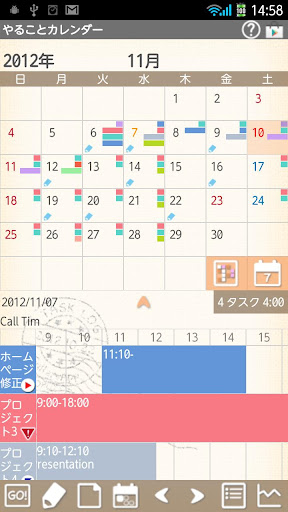
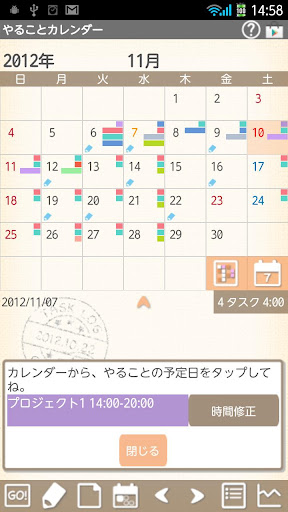
Save tasks before you forget and stick them (the color of each task) on dates! Save tasks without limit!
Corresponded to Pomodoro.
Set the alarm to let you know elapse time of each task! By timing each task, you can check which task eats up more your time so you can organize better the time!
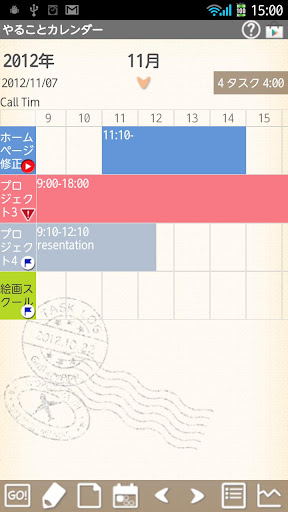
Display up to 5 tasks each day! Saved tasks and working hours are displayed in time line below the calendar! Drag and move in all direction!
*Task Calendar does not sync with Google Calendar. When the mobile is manner mode, the alarm may not work properly by the model.
*Menu button of the mobile*
Tap Menu button.
1. Calendar Mail:Send your shift by email with the image.
2. Alarm: Set sound …
Read the full description
Save tasks before you forget and stick them (the color of each task) on dates! Save tasks without limit! Corresponded to Pomodoro. Set the alarm to let you know elapse time of each task! By timing each task, you can check which task eats up more your time so you can organize better the time! Display up to 5 tasks each day! Saved tasks and working hours are displayed in time line below the calendar! Drag and move in all direction! *Task Calendar does not sync with Google Calendar. When the mobile is manner mode, the alarm may not work properly by the model. *Menu button of the mobile* Tap Menu button. 1. Calendar Mail:Send your shift by email with the image. 2. Alarm: Set sound and volume. 3. Setting:Select a background color and set basic functions of the app. 4. Backup: ---Import SD card: Import data from SD card. ---Export SD card: Export data to SD card. ---Export Cloud:You can backup data to Google Drive and Dropbox.*Please install either software from the market. 5. Password: Set the password. 6. More: ---Copy to SD card: Copy the data to internal and external SD card. ---Recovery: Use this function when you want to return to the previous data. *Please note that the current data will be deleted when you use this function. *How to use* Opening screen is a calendar. Let's save tasks first and stick the color of the task on the dates! 1. Tap pencil button of the calendar. 2. Move to "Task Schedule Edit". 3. Enter the task and tap + button to save and return to the calendar. 4. The message box appears when returning to the calendar. 5. Tap dates to stick the color of the task! 6. End with "Close". 7. Edit the background color and memo etc... with the pencil button! *Start and End of tasks* Time the task with a timer! There are two ways to time. 1. When sticking the color of the task, the background color of each task appears in the time line. Tap one of the task's background colors. 2. Move to "Timer" screen. 3. Start timing with "Start". 4. Edit the estimated time with "Edit". 5. Edit the time directly with "Time". 6. Delete the task with trash bin. 1. The other way to time the task, tap "GO!" button. 2. Select a task from the list. 3. Set the alarm to let you know elapse time of each task! Select the intervals from the list. 4. Start timing with "Start". You can start timing either way and see the graph of each working hours with the "Graph" button of the calendar. 1. Tap "End" button to end the timer. 2. The result of working hours appears in the time line of the calendar. 3. Drag and move the time line in all direction! *Calendar* 1.You can display up to five tasks on each date. Saving tasks is unlimited but you can 2. Save a short memo in a day. <How To> a)Tap "Note" button (The third button of the calendar). b)Enter the content of the memo and Save. 3. The short memo will be displayed above the time line. *Calendar's buttons* Upper right 1. 「Help」:Move to GalleryApp's Task Calendar web site page. 2. 「Market」:Recommendation of other GalleryApp's apps. Middle right 1. 「Select Task」:Select a task to switch the calendar display. 2. 「Weekly Display」:Switch the calendar to weekly display. Middle under「Select Task」「Weekly Display」 1. 「Full Screen」:Tap arrow to see the time line in a full screen. 2. 「Task」:It shows numbers of total tasks and working hours. Lower from Left 1. 「GO!」:Add and save tasks or study contents. After saving tasks, tap again here to select a subject and start the study. 2. 「Task Schedule Edit」:Save tasks and stick the color of the task on the date. Edit background colors and memo etc… with the pencil button. 3. 「Note」:Save a memo in a day. 4. 「Today」:Go back to today's date. 5. 「Left」「Right」:Move dates right and left. 6. 「List」:Switch to the List display. 7. 「Graph」:You can see graphs of your working hours of each task.
Installs since 1 Sep 2026 Measured
Exact Google Play install counts, collected daily
Ratings
27 ratings
- 5 ★0.0%
- 4 ★0.0%
- 3 ★0.0%
- 2 ★0.0%
- 1 ★0.0%
Recent reviews
Latest public reviews from the store
- 19 Feb 2017
Wish there was a paid version to get rid of ads. Also needs to be in landscape mode when entering the note. And a password.
- 4 May 2012
Love it!
Top chart positions
Latest Google Play chart ranks by country, last 10 days
Not in any tracked top chart in the last 10 days.
Task Calendar history
Release, install milestones, listing and store changes
- Reached 10,000+ installs 25 Jul 2014
- Reached 5,000+ installs 28 Aug 2013
- Reached 1,000+ installs 19 Dec 2012
- Reached 500+ installs 28 Nov 2012
- First released on the store 10 Nov 2012
Recent versions
Current version Varies with device
- Version 1.0.201 May 2019
- Version 1.0.187 Oct 2018
- Version 1.0.1520 May 2017
- Version 1.0.1011 Mar 2017
Listing keywords
Words and phrases Task Calendar repeats most in its store listing
Top phrases: save tasks (6), sd card (6), working hours (5), select task (4), sd card export (3).
Highlighted words also appear in the title. Counts cover the title, short description and description.
Business model and tech
From the store listing, the SDKs in the app package and its declared permissions
- Business model
- Free to downloadShows ads
- Built with
- No cross-platform framework or game engine detected
- Ad networks (4)
- AdMobAdlantisAdstirNend
- Sensitive access
- Photos, videos and files
4 ad, attribution and analytics SDKs detected. SDKs are read from the app package and permissions from the store listing, so code that loads later is not seen.
Technology
11 SDKs found in the app package
Ad networks
Advertising and install-attribution SDKs found in the app package
- AdMob
- Adlantis
- Adstir
- Nend
10 permissions
0 special access, 2 sensitive, 8 standard
- Change or delete shared storageSensitive
- Read shared storageSensitive
- Ask to skip battery optimisationREQUEST_IGNORE_BATTERY_OPTIMIZATIONSStandard
- Control vibrationStandard
- Keep the phone awakeStandard
- Full internet accessStandard
- See network connectionsStandard
- See Wi-Fi connectionsStandard
- Receive push messagesStandard
- Set an alarmStandard
Compliance
What the listing and the app package show
- Store status
- Live
- Upkeep
- No update since 1 May 2019
- Registered in
- Japan
- Privacy policy
- Linked on the listing
- Advertising
- Shows ads
- In-app purchases
- None declared
- Age rating
- Everyone
- Sensitive permissions
- 2 sensitive of 10
- Location access
- No
- Camera and microphone
- Neither
Apps like Task Calendar
목포해양대학교 도서관wiseneosco7.6K installs★ 4.8
Aza-e-HussainSyed Mehdi Raza5.2K installs★ 4.8
Jewish QuoteChabad.org Jewish Apps8K installs★ 4.85
Car Engine SoundsSboard.pro29K installs★ 4.17
Garland County LibrarySolus UK Ltd5.9K installs★ 4.78
Món Ngon 3 Miền - Nau an ngonWeOnline.VN9.1K installs★ 4.1
CARPORTPop-Pulse4.3K installs★ 4.06
블랙 심플 카톡테마은수우우45.4K installs★ 4.6
WMS WebControlWAREMA Renkhoff SE13.1K installs★ 3.5
Task Calendar: questions and answers
How many downloads does Task Calendar have?
Task Calendar has 16,716 installs on Google Play, measured from the store's own count on 10 Nov 2026.
Who makes Task Calendar?
Task Calendar is published by 株式会社GalleryApp, a developer based in JP.
When was Task Calendar last updated?
The latest version (Varies with device) was released on 1 May 2019.
Is Task Calendar free?
Yes. Task Calendar is free to download, and it shows ads.
Is Task Calendar still available?
Yes. Task Calendar is live on Google Play as of 10 Nov 2026.
Track Task Calendar and its competitors
Watch any app for new versions, rating drops, chart moves and removals. Free plan, no card.